Setting up Outline VPN in BeAdmin
Step-by-step guide to installing and configuring Outline VPN.

Outline is a modern VPN solution based on the Shadowsocks protocol, designed for bypassing restrictions and protecting your internet traffic. It uses the fast and secure ChaCha20-Poly1305 (AEAD) encryption algorithm.
In the BeAdmin control panel, Outline is fully integrated — key generation, user management, and configuration sharing are all handled automatically.
Activating the Outline VPN module
First, prepare the server side. BeAdmin automatically installs all the necessary dependencies.
- Log in to your BeAdmin panel and navigate to the Outline VPN section.
- Click the
Installbutton. - Wait for the process to complete. The panel will automatically download and configure all required components.
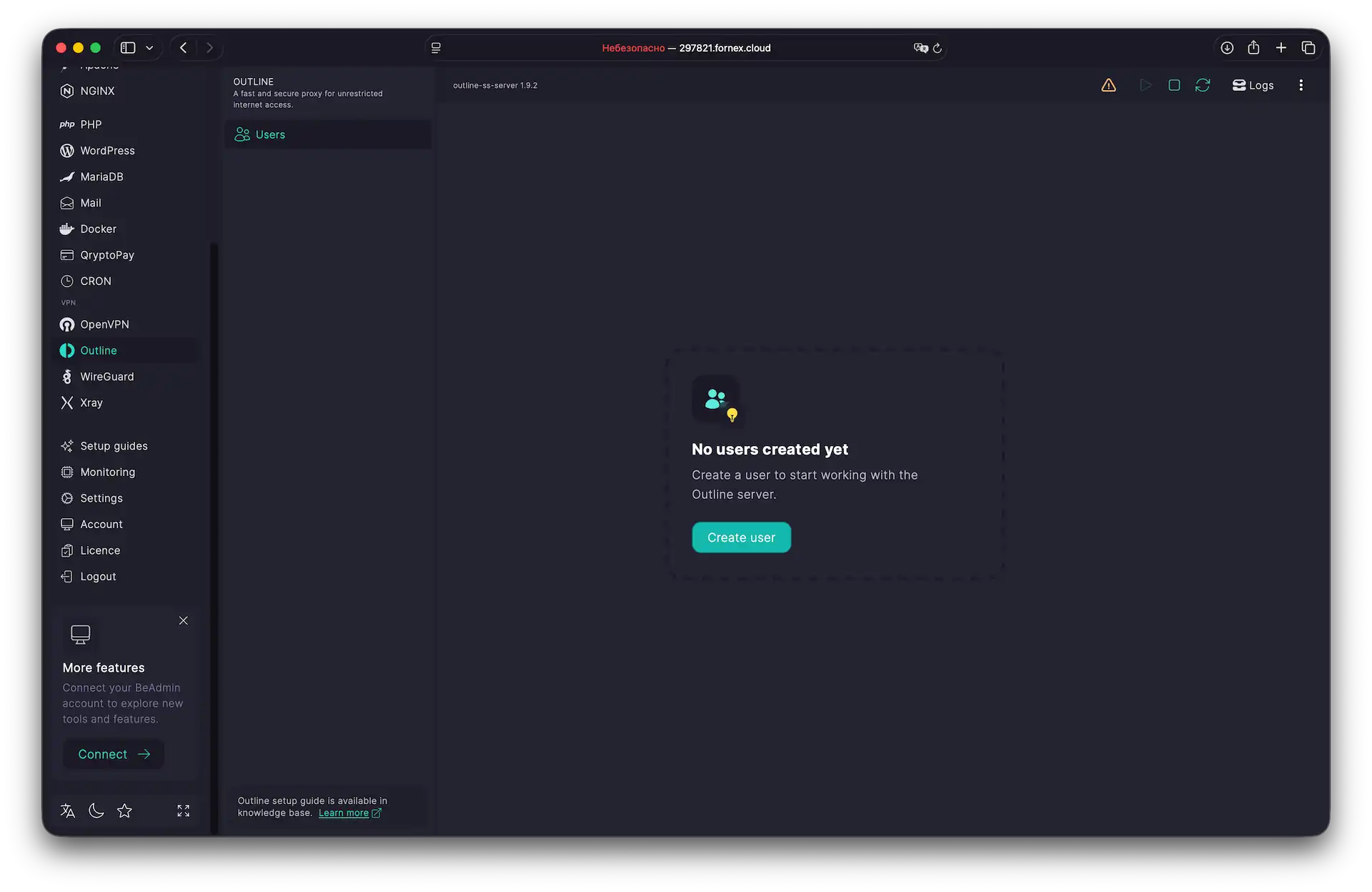 Outline VPN Module Interface
Adding a new user
To grant access to the VPN tunnel, create a new user profile.
- Click
Create User. - In the Email field, enter the address where the access key will be sent.
- In the Name field, enter any descriptive name.
- Click
Create. The user will appear in the list and be ready for connection.
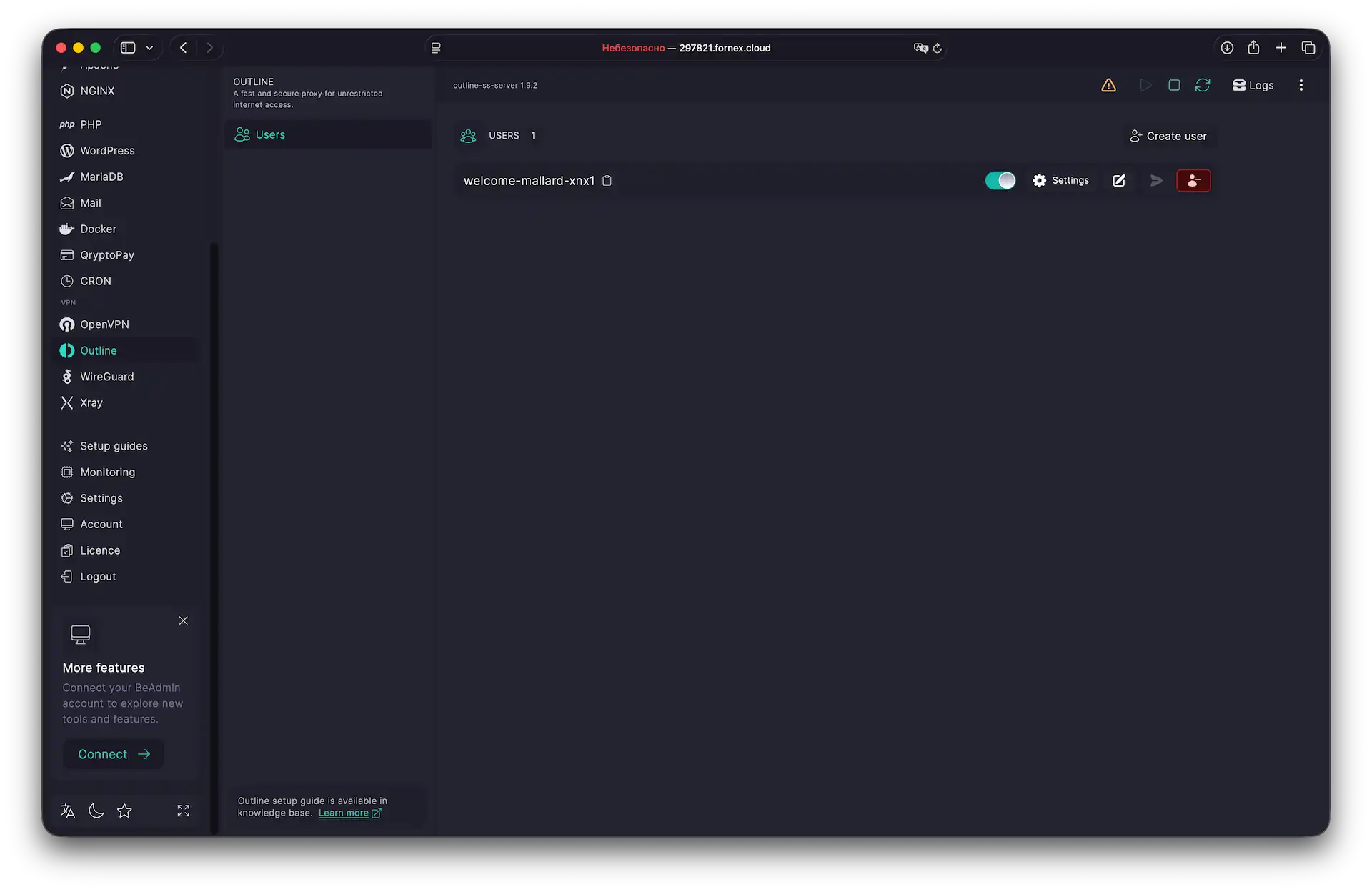 User List for VPN Connections
Connecting on your device
For the best experience, use the official Outline Client, available for:
To get the access key, go to the Users section, click the Settings (gear) next to the desired user, and choose one of the following options:
- Copy the access link for import into the app
- Scan the QR code directly from the screen
- Send the access key via email
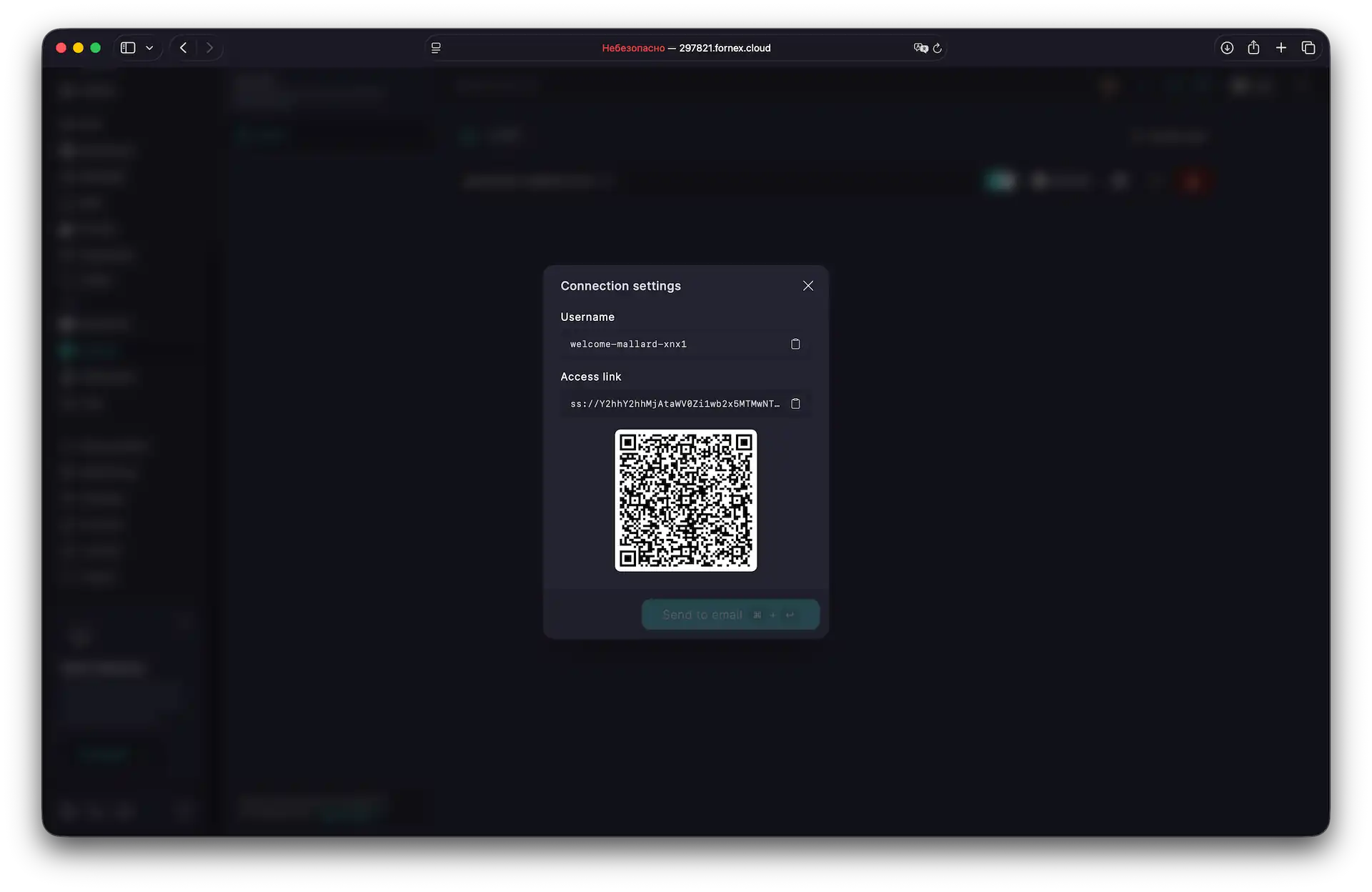 Connecting to Outline VPN
Open the Outline Client on your device and add the server:
- On mobile: Tap
Add Server, then paste the copied access link or scan the QR code. - On computer: Click
Add Serverand paste the access link.
Tip
After connecting for the first time, check your current IP address on any website like myip.com to confirm the VPN is working correctly.
Managing users
You can temporarily disable a user by toggling the switch next to their name in the user list. When disabled, the access key is immediately deactivated, and the user loses the ability to connect. Changes take effect instantly — no service restart is required.
When you re-enable a user, the same access key becomes active again. The user does not need to reconfigure the client application.
Help
If you have any questions or need assistance, please contact us through the ticket system — we're always here to help!