Getting started with Web Hosting
Initial domain setup, FTP, and database configuration in your Fornex dashboard.
Once you've ordered Web Hosting, you'll be taken straight to the quick-setup wizard in your account dashboard. The entire process takes 1–2 minutes and gets your domain live, secure, and ready for files.
Step 1: Add your domain
- Enter your domain name in the field (without www, http, or https).
- Choose how to point (delegate) the domain:
- Recommended — Delegate to our nameservers (check the box).
This automatically sets up:- Our nameservers
- DKIM & SPF records for email delivery
- A free Let's Encrypt SSL certificate with auto-renewal
- Alternative — Point via A-record to your hosting IP (if you prefer to keep your current nameservers at the registrar).
- Recommended — Delegate to our nameservers (check the box).
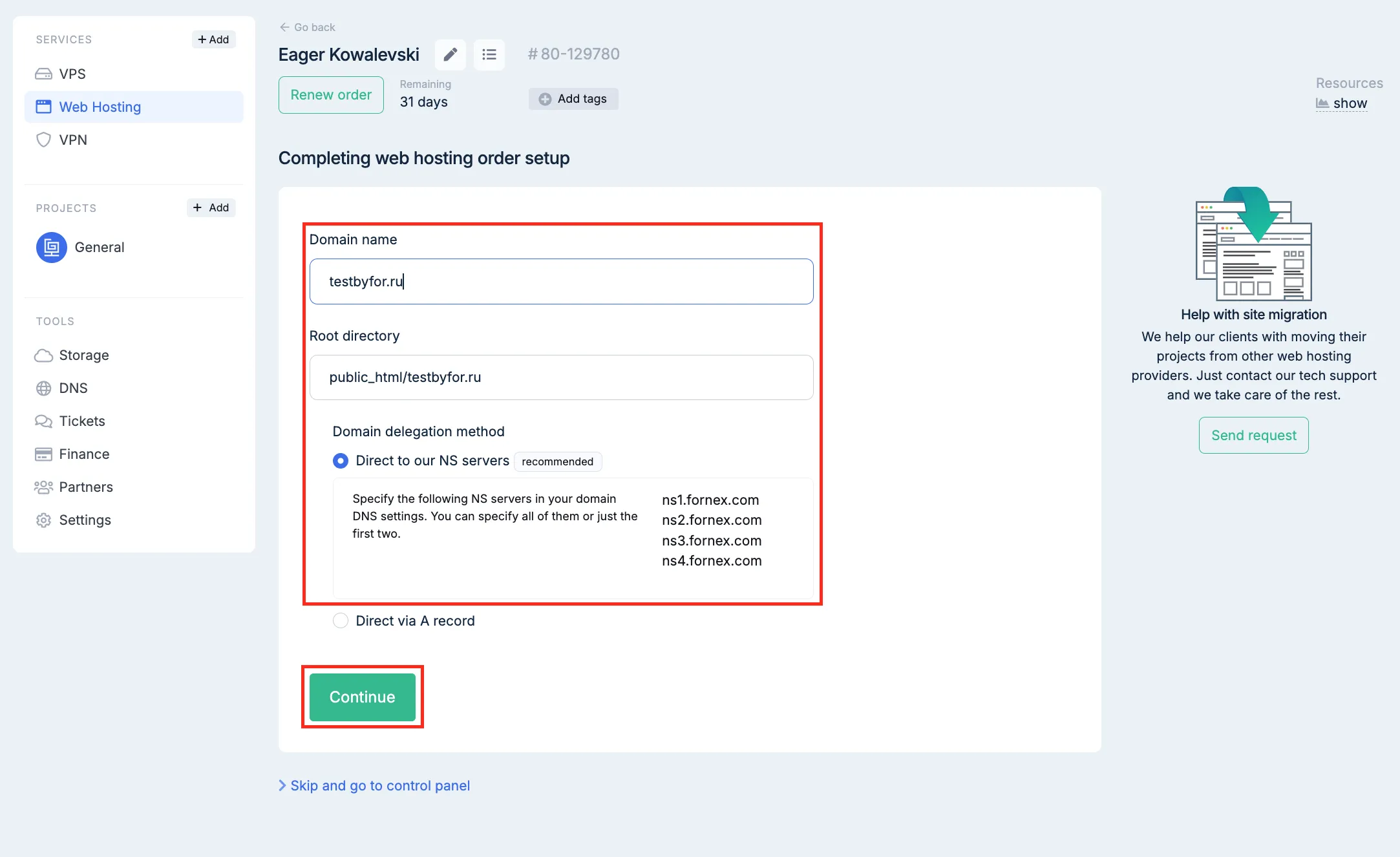 Adding your domain and choosing delegation method
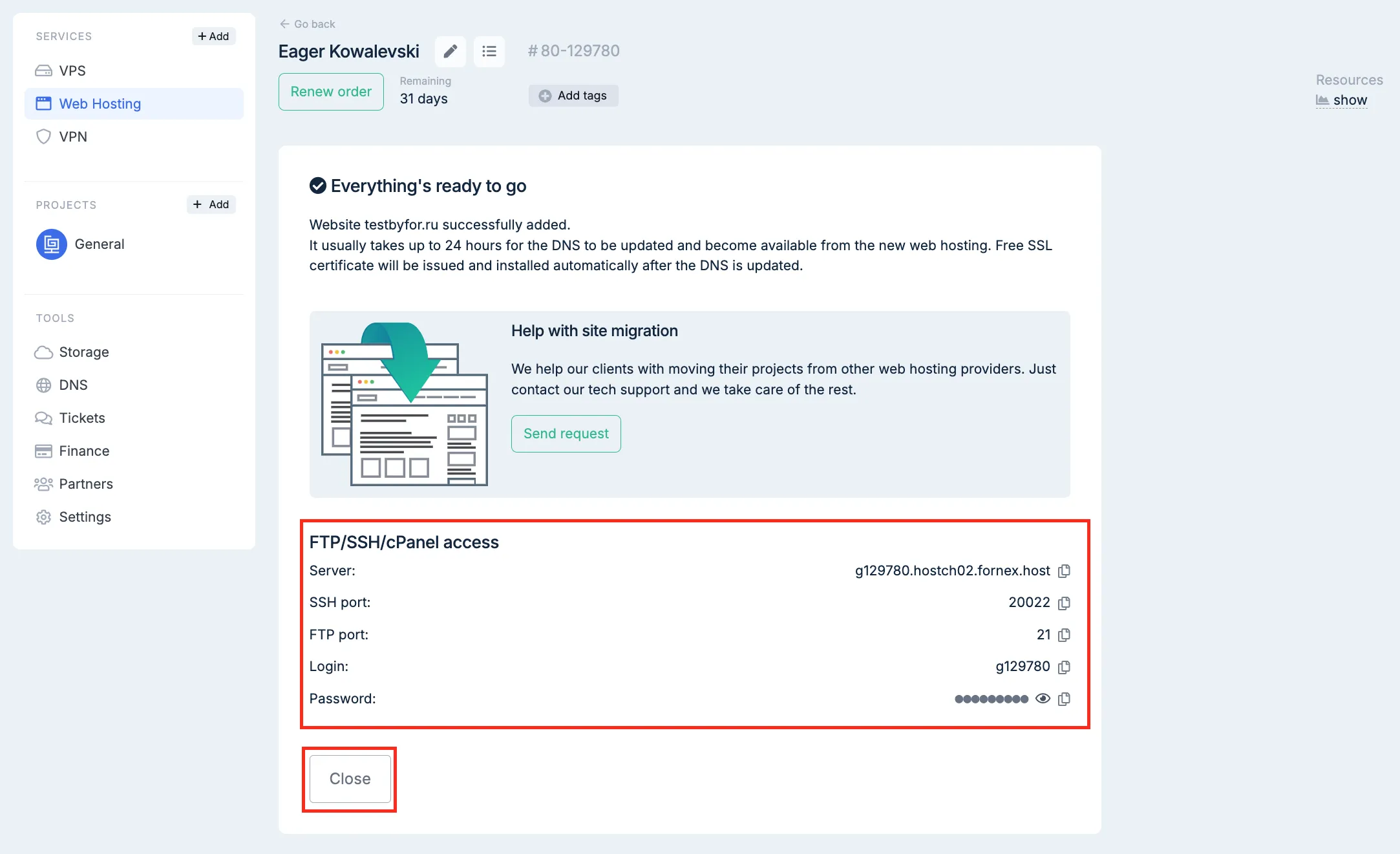 Automatically configured nameservers, DNS records, and SSL
Important
DNS changes (especially nameserver delegation) can take anywhere from 15 minutes to 48 hours to propagate worldwide.
During this time your site may still load from old settings or appear offline — this is completely normal.
Step 2: What happens automatically
After you save:
- Your domain is added to the root folder
~/public_html/ - An FTP account is created with access limited exactly to that folder
- A MySQL database is created along with a user and password
- A Let's Encrypt SSL certificate is issued and activated (when using our nameservers)
All credentials appear immediately in your dashboard.
Step 3: Managing your hosting going forward
Everything else — adding email accounts, subdomains, extra SSLs, file management, database tools, cron jobs, etc. — is done in one of two places:
- The hosting control panel
- Directly in your Fornex dashboard under the order management section
Detailed guide:
Managing your Web Hosting order
Quick tips
- If you use A-record pointing instead of our nameservers, Let's Encrypt won't auto-install — you'll need to set it up manually in the control panel.
- After changing nameservers or A-records, verify propagation using whois.icann.org or any DNS checker.
- FTP and database credentials are shown right in the dashboard — no separate emails needed.
Help
If you have any questions or need assistance, please contact us through the ticket system — we're always here to help!