Setting up Cloudflare
How to connect and secure your site with Cloudflare.
Cloudflare is a service that protects websites from attacks, speeds up page loading, and enhances overall security.
Key features include:
- Blocking malicious bots, DDoS attacks, and spam
- Caching static files (CSS, JS, images) on servers worldwide
- Network-level threat protection
- Free SSL/TLS certificates and more
Full list of plans and features: Cloudflare Plans & Pricing
Support and documentation: Cloudflare Help Center
For the strongest protection and performance, use this layered approach:
Cloudflare → Fornex firewall → your server
This setup:
- Filters obvious threats at Cloudflare
- Limits incoming traffic to Cloudflare IPs only via Fornex firewall
- Blocks direct access to your server from the public internet
Step 1. Create a Cloudflare account
- Go to cloudflare.com and click Sign Up.
- Choose a plan (the free tier is sufficient to start).
- Enter your email and password, then verify your account.
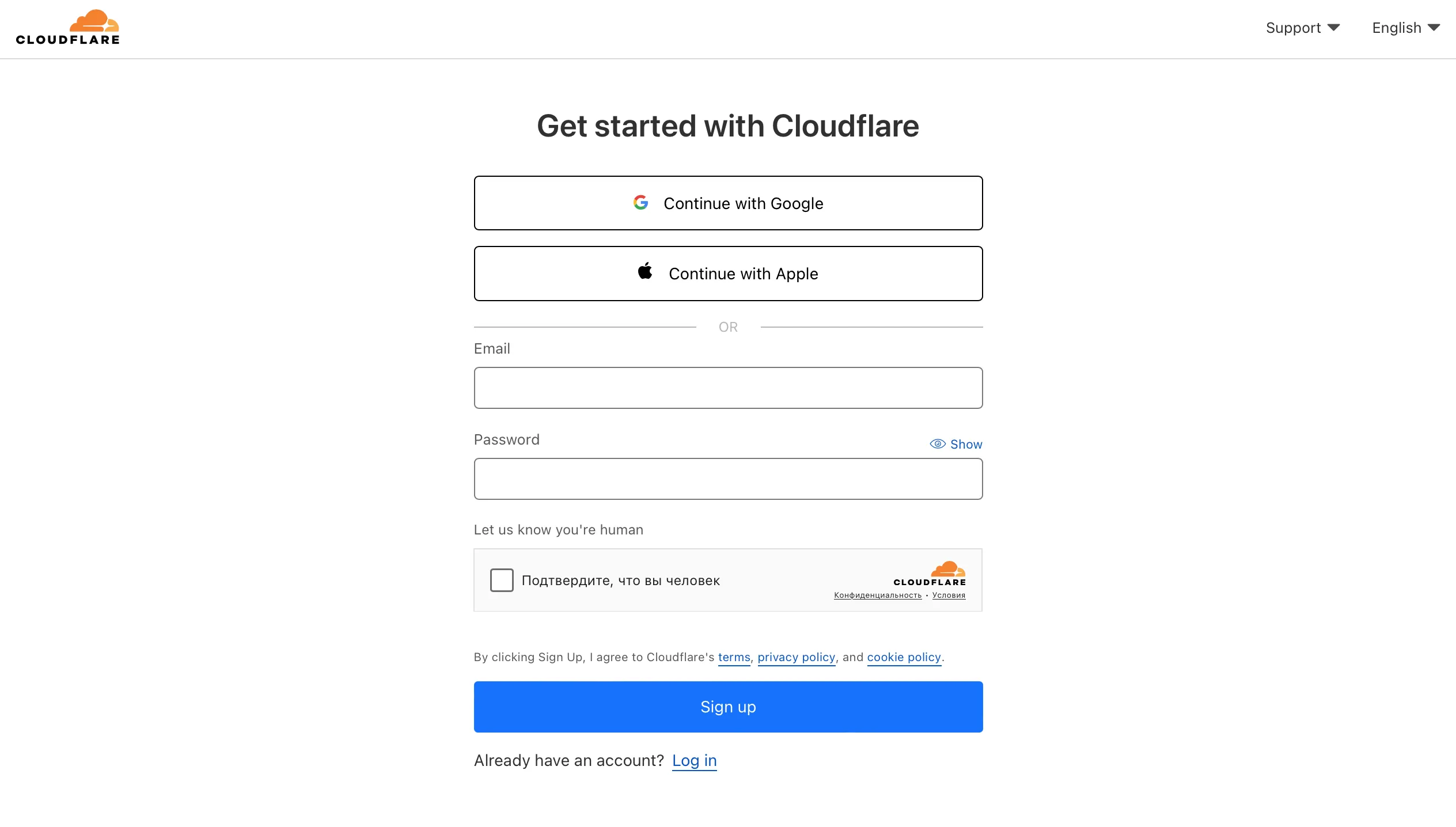 Cloudflare signing up
Step 2. Add your domain
- Enter your domain name and click Continue.
- Cloudflare scans your existing DNS records (takes about 1–2 minutes).
- Once complete, click Continue.
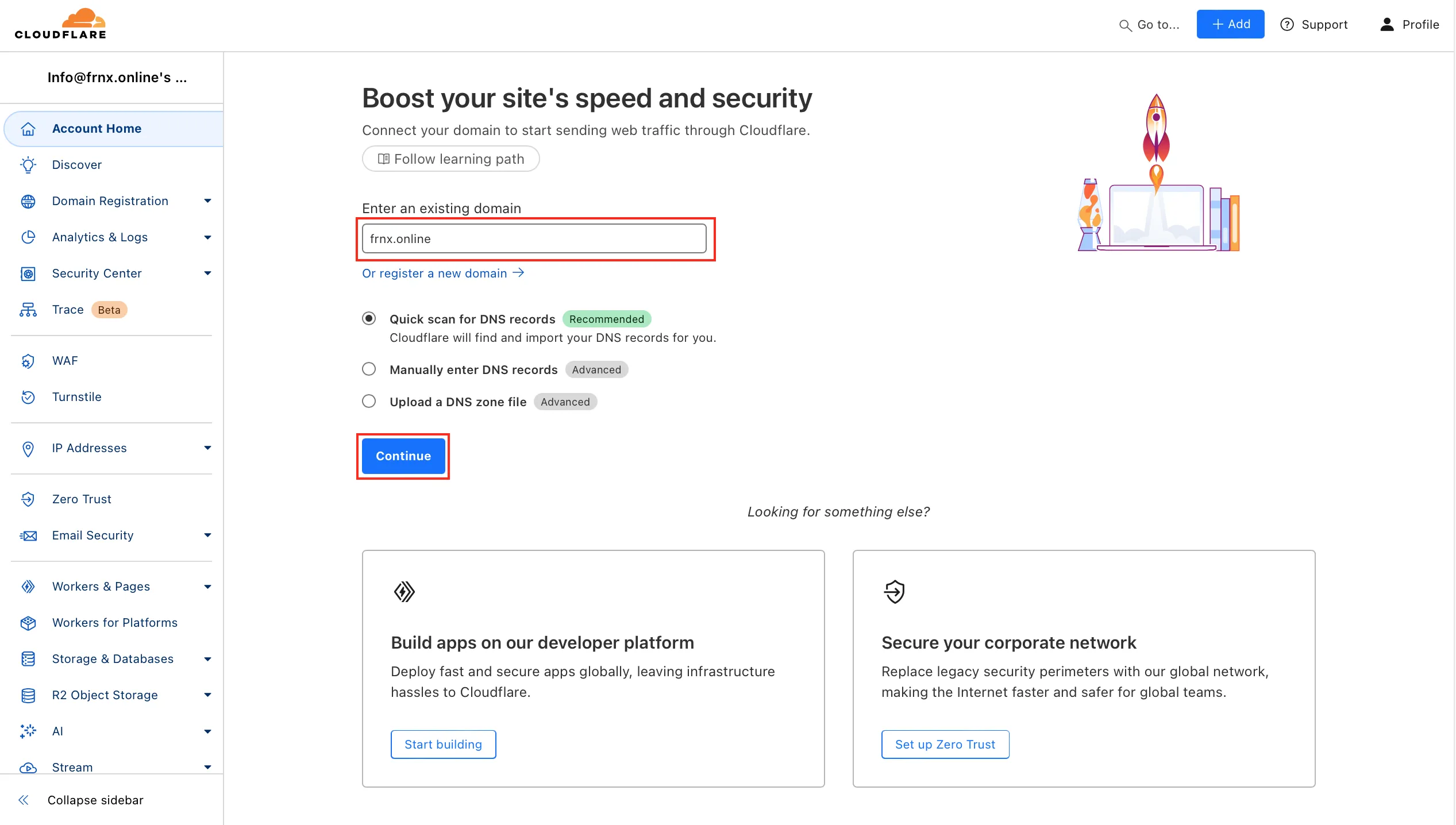 Domain adding
Step 3. Review and configure DNS records
Cloudflare imports your current DNS records automatically.
Check that all essential records are present (A, CNAME, MX, TXT, etc.).
- Add missing records: click Add record, select type, enter name/value/TTL, and save.
- For subdomains (e.g., api.example.com), add individual records — wildcard (*) does not provide full Cloudflare protection.
- Edit or delete records directly in the interface.
When everything looks correct, click Continue.
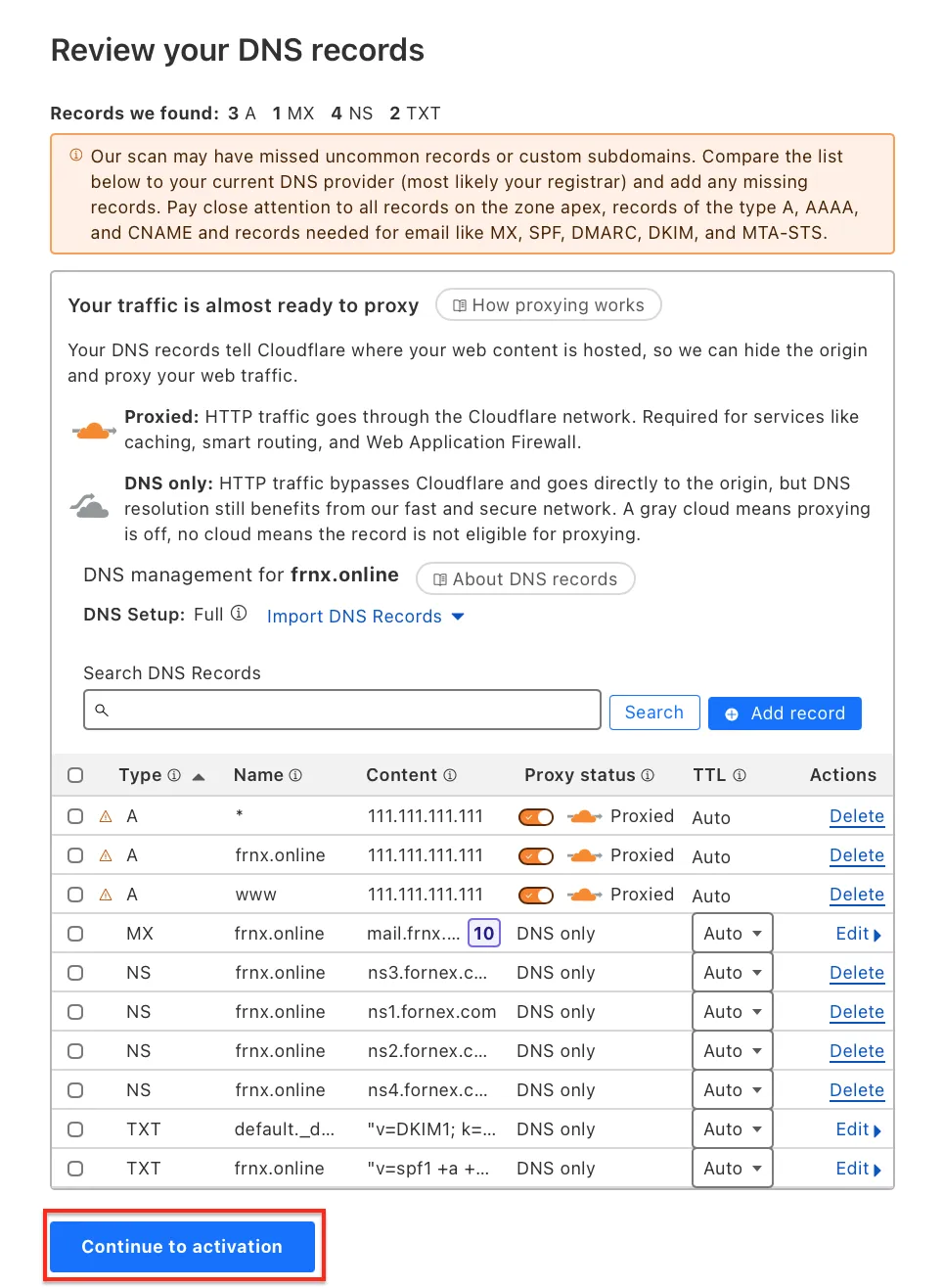 DNS configuration
Step 4. Update nameservers
Cloudflare provides two new nameservers (e.g., ns1.cloudflare.com and ns2.cloudflare.com).
Log in to your domain registrar and replace your current nameservers with Cloudflare's.
Propagation can take up to 24 hours.
Once complete, your domain status in Cloudflare will change to Active.
Important
During DNS propagation, your site may be temporarily unreachable or load via the old DNS. This is normal.
Step 5. Set Up server-side and Fornex firewall protection
To achieve the strongest protection, configure filtering at three levels:
1. On your server
Close all unnecessary ports. Keep only the ones you actually use:
80and443— HTTP/HTTPS (required for the website)22— SSH (if you use it)21— FTP (if you use it)- Control panel port (e.g.,
8443for HestiaCP,2083/2087for cPanel, etc.) — if you use a panel
For VPS: Use the built-in firewall in your Fornex dashboard (VPS → Firewall tab).
For dedicated servers: Configure manually using iptables, ufw, or firewalld — there is no dashboard firewall button.
Example basic ufw setup (allow only from Cloudflare IPs):
# Allow HTTP/HTTPS from Cloudflare ranges
sudo ufw allow from 173.245.48.0/20 to any port 80,443 proto tcp
sudo ufw allow from 103.21.244.0/22 to any port 80,443 proto tcp
# ... add all ranges from https://www.cloudflare.com/ips/

# Allow SSH/FTP/panel (if needed) — ideally only from your IP or Cloudflare
sudo ufw allow from YOUR_IP to any port 22 proto tcp
sudo ufw allow from YOUR_IP to any port 21 proto tcp
sudo ufw allow from YOUR_IP to any port 8443 proto tcp  # example for HestiaCP

# Deny everything else on these ports
sudo ufw deny 80,443,22,21,8443
sudo ufw reload
Full up-to-date Cloudflare IP ranges: https://www.cloudflare.com/ips/
2. On Fornex (VPS only)
In the dashboard → VPS → Firewall tab:
- Create rules allowing incoming traffic only from Cloudflare IP ranges (list above)
- Allow required ports (
80,443,22,21, panel port, etc.) - Deny everything else
This adds an extra layer — even if someone bypasses Cloudflare, direct attacks on your server IP are blocked.
On dedicated servers, all filtering is done manually on the server itself (iptables/ufw/firewalld).
3. On Cloudflare
- Enable Proxy status (orange cloud) for all A/CNAME records — this routes traffic through Cloudflare
- Go to Security → WAF and enable Managed Rules (free)
- Turn on Bot Fight Mode or Super Bot Fight Mode
- In SSL/TLS → Edge Certificates, set to Full (strict)
- In Caching, enable caching for static files
After configuring all three layers:
- Direct attacks on your server IP are blocked by the firewall
- Cloudflare filters most threats
- Your server receives only clean, verified traffic
Verification steps
- Send a test request or email — check headers for Cloudflare markers (CF-Ray, CF-Connecting-IP)
- Try accessing the site directly via its IP — it should be blocked
- Test page load speed and inbox delivery
Note
On dedicated servers, be careful: accidentally blocking SSH port 22 without an allow rule for your IP will lock you out. Set exceptions first.
Help
If you have any questions or need assistance, please contact us through the ticket system — we're always here to help!