Connecting and setting up your dedicated Mac Mini server
Getting started with your dedicated Mac Mini server.
A dedicated Mac Mini server is a true powerhouse for development, rendering, and running macOS-only services. It’s the go-to choice for professionals who need:
- Native development and testing for iOS, macOS, watchOS, and tvOS
- Seamless work in Xcode, SwiftUI, Final Cut Pro, Logic Pro, Motion, and other pro Apple apps
- Automated builds and full CI/CD pipelines in the Apple ecosystem
- Fast video rendering, heavy graphics work, 3D modeling, and large media projects
- Hosting services that simply require real macOS
We deliver your server with a pristine, clean macOS installation — no extra software, no bloat, ready to use right away. You get full root/admin access, so you can set everything up exactly the way you want: Xcode + Homebrew, Docker, Jenkins, custom tools — whatever your workflow needs.
The big win? Genuine native Apple performance with zero emulation, virtualization, or the usual speed compromises.
Native connection via macOS Screen Sharing (recommended)
If you’re on a Mac, you already have the best tool built in — no downloads required.
- Press
Command + Space, type Screen Sharing, and hit Enter.
Quick tip: In Finder pressCommand + Kand typevnc://your_server_ip.
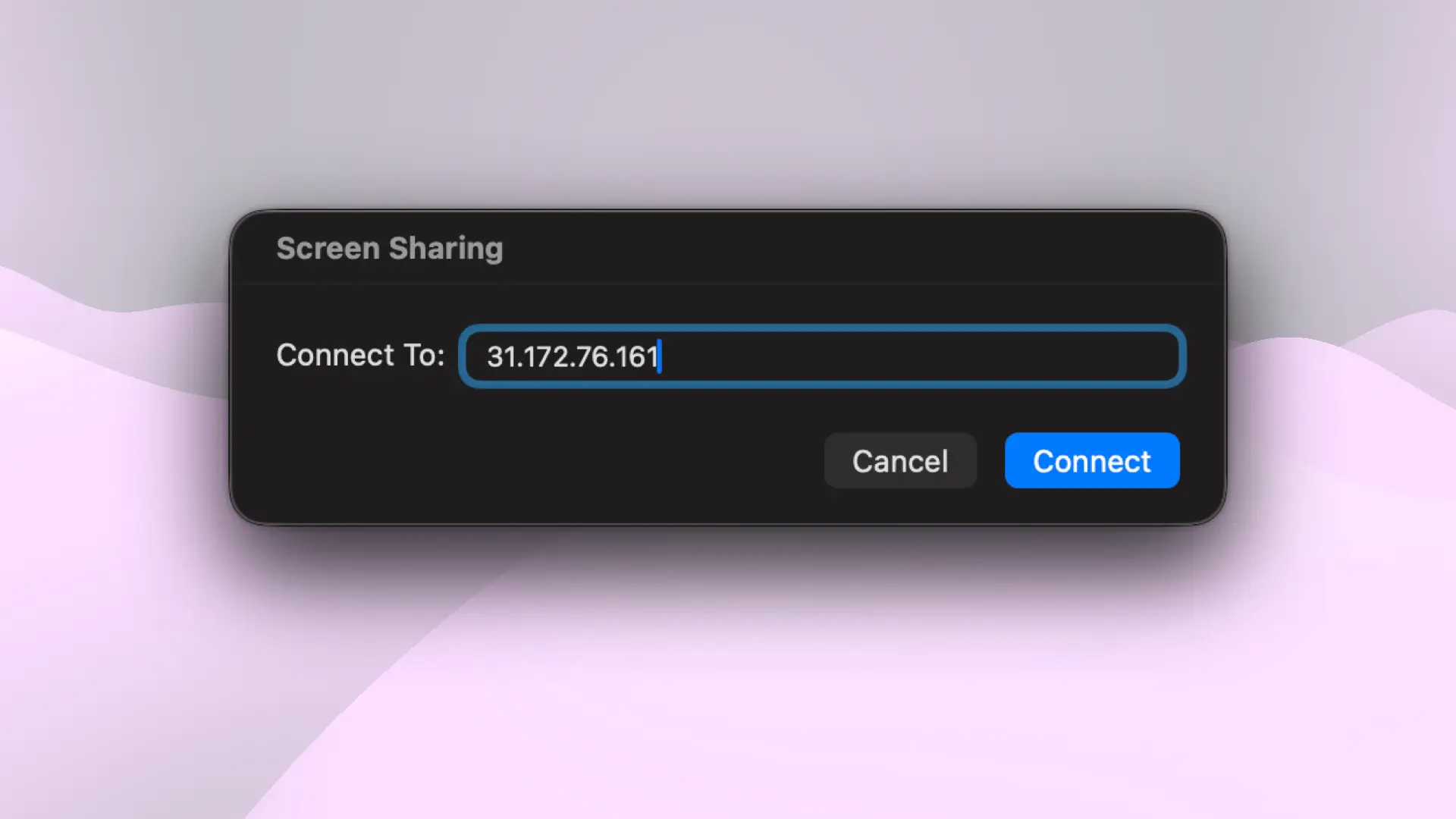 Launching Screen Sharing on macOS
- Enter your server’s IP address and click Connect.
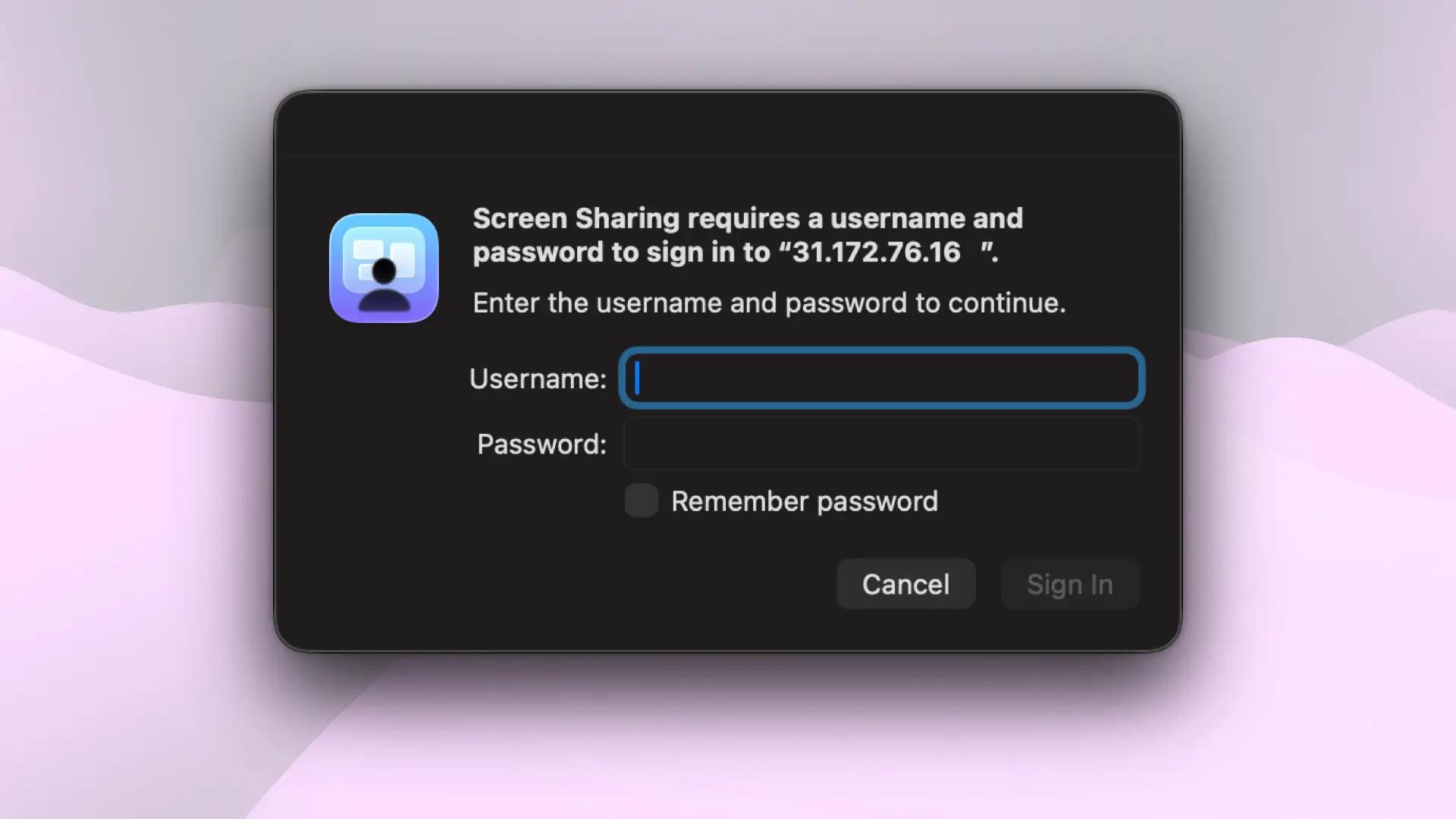 Server login
- Enter the username and password from your server control panel →
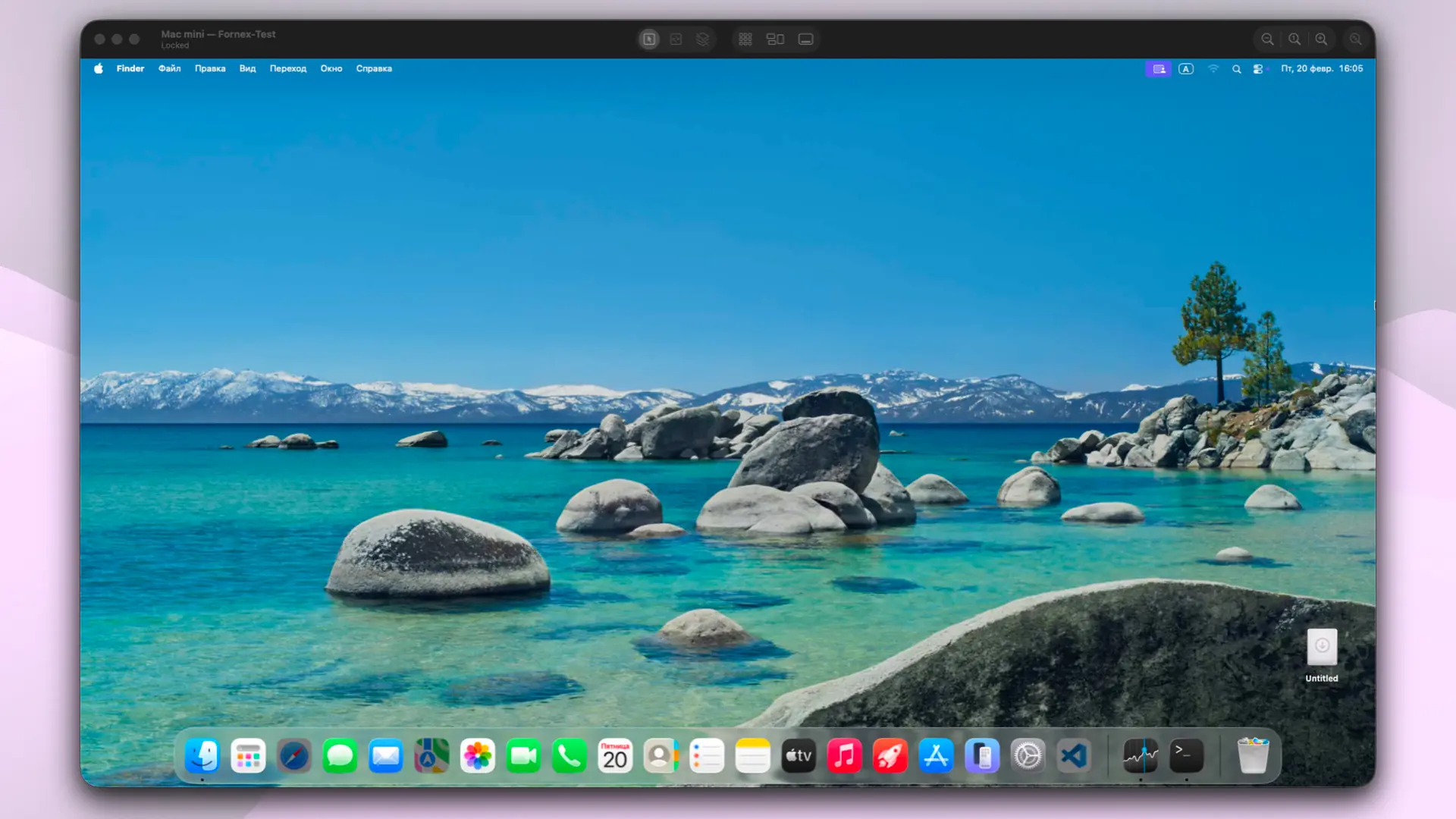 Connection to the server
Using third-party VNC clients
On Windows, Linux, or if you want extra features and session management, here are the most popular options:
- macOS: RealVNC Viewer, Screens, Jump Desktop
- Windows: TightVNC Viewer, RealVNC Viewer, UltraVNC
- Linux: Remmina, TigerVNC, Vinagre
- Mobile: VNC Viewer (RealVNC), Screens, Mocha VNC
We’ll use Remote Desktop Manager for this example — free download →
Creating a new session
- Click Add session.
- Choose Apple Remote Desktop (ARD) as the template.
- Give it a clear name and go to the Apple Remote Desktop (ARD) tab.
- Fill in:
- Host: your server IP
- Port:
5900(default) - Username and Password: from your control panel
- Click Create.
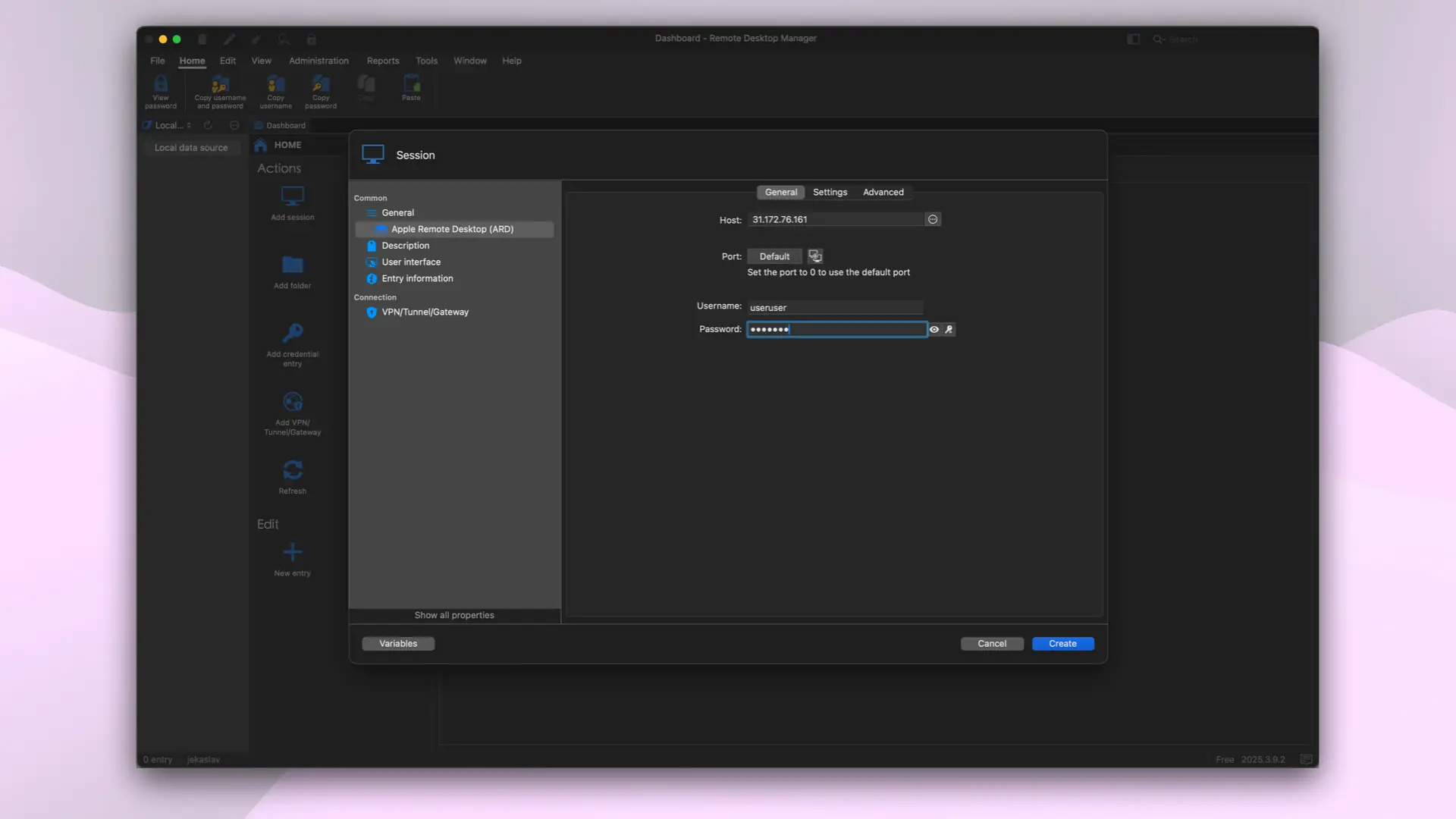 Creating a session in Remote Desktop Manager
After saving, you’ll see a clean control panel — launch the connection in a window or go full-screen.
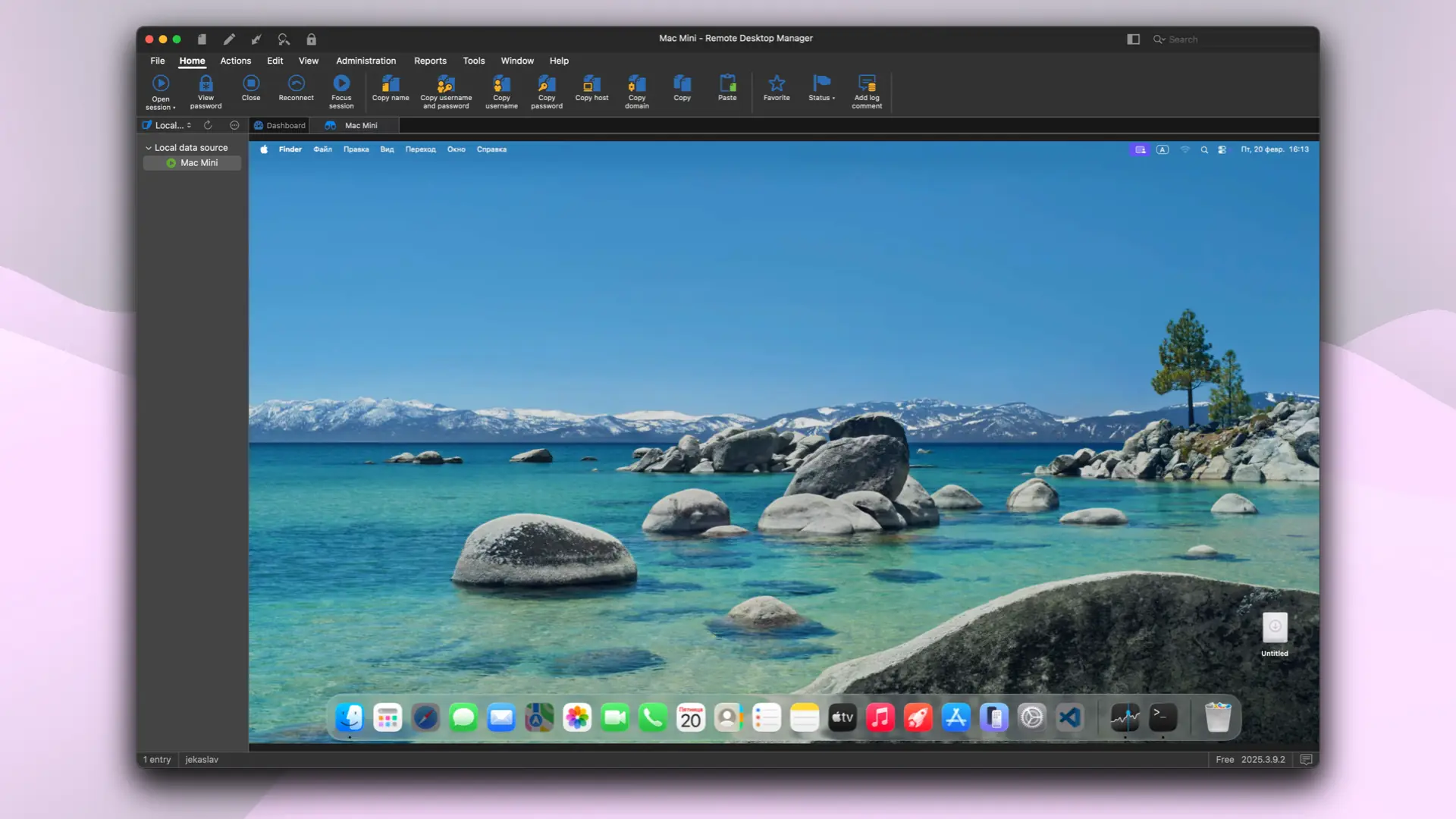 Connecting via Remote Desktop Manager
Tips for the smoothest remote experience
Even great VNC can feel laggy if the settings aren’t dialed in. Here’s how to get buttery-smooth performance:
- Best option: Use the built-in macOS Screen Sharing whenever possible — it’s noticeably more responsive than most third-party clients.
- On your Mac, go to System Settings → Accessibility → Display and enable Reduce motion + Reduce transparency.
- Check your ping to the server (
ping your_server_ip). Aim for under 80–100 ms. - In any VNC client, drop image quality to Medium or Low and enable hardware acceleration (H.264/Auto) if available.
- Keep server load in check: open Activity Monitor and make sure nothing is eating CPU or RAM.
Help
If you have any questions or need assistance, please contact us through the ticket system — we're always here to help!