Setting up GitLab on a VPS
A step-by-step guide to deploying GitLab with SSL and Docker.
GitLab is a complete DevOps platform — Git repository hosting, CI/CD pipelines, issue tracking, and team collaboration all rolled into one. Running your own instance on a VPS means you own everything: your code stays on your server, there are no limits on private repositories, and no third party has access to your data. For teams handling sensitive codebases or internal projects, that's a meaningful difference from relying on web instance.
GitLab is resource-hungry by design. Make sure your VPS has at least 4 GB of RAM and 4 CPU cores before you start — anything less and you'll likely run into stability issues.
Setting up your domain
GitLab needs a domain to obtain an SSL certificate automatically via Let's Encrypt. Without it, the setup won't complete properly.
- Register a domain or create a subdomain — something like
git.your-site.comworks well. - Head to the DNS management section in your control panel and create an A record pointing to your VPS IP address.
- Wait for DNS to propagate — this usually takes anywhere from 5 to 30 minutes.
Important
Don't run the installer until your A record is actually resolving to your server's IP. Let's Encrypt will try to verify domain ownership during setup, and it'll fail if DNS isn't ready yet.
Connecting to your server
- Log in to your control panel → VPS → select your server.
- Grab the IP address and root password from the order details.
- Connect via SSH, specifying port
2222right out of the gate:
ssh root@YOUR_SERVER_IP -p 2222
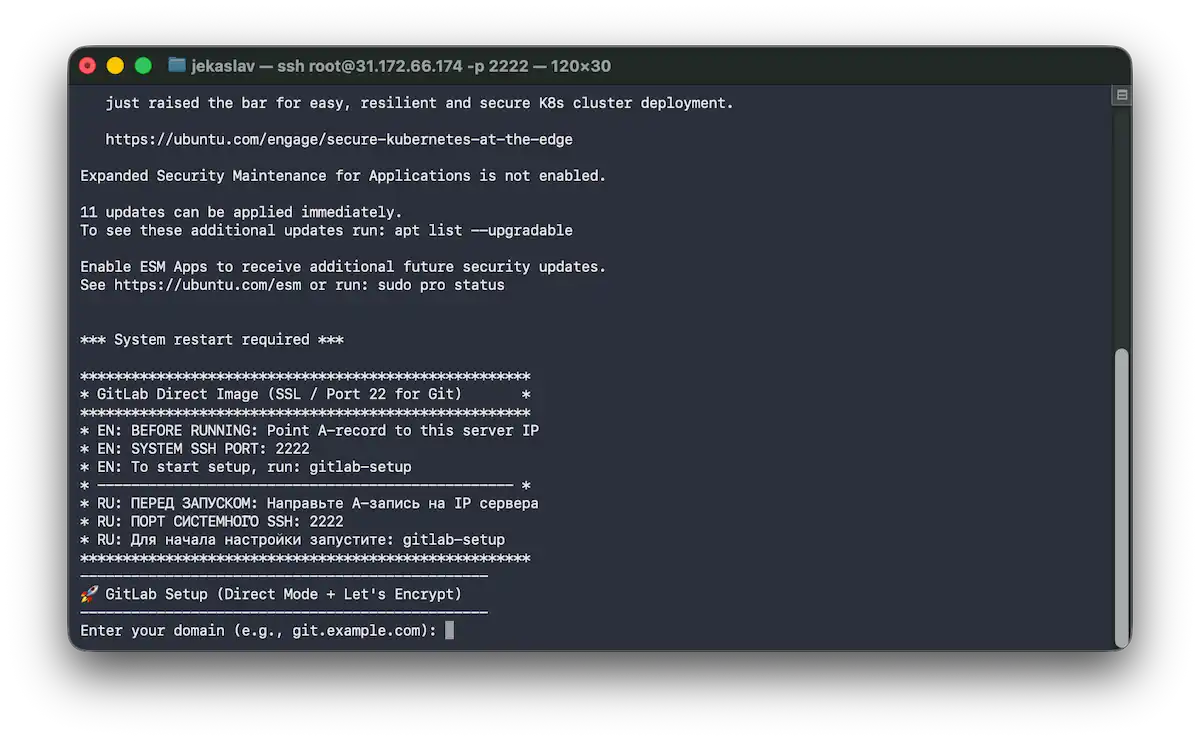 Connecting to the server and initial GitLab setup
Don't have a VPS yet?
Fornex offers VPS hosting with full root access, and 24/7 support. Get a stable server with NVMe disks for fast and reliable operation. Find more details on the Fornex VPS page.
Running the setup wizard
The first time you log in, you'll be greeted by the GitLab Direct Image welcome screen:
*****************************************************
* GitLab Direct Image (SSL / Port 22 for Git)       *
*****************************************************
* EN: BEFORE RUNNING: Point A-record to this server IP
* EN: SYSTEM SSH PORT: 2222
* EN: To start setup, run: gitlab-setup
*****************************************************
The wizard will ask you two things:
- Domain — enter your domain (e.g.
git.example.com):
Enter your domain (e.g., git.example.com):
- Email — enter an address for Let's Encrypt SSL notifications:
Enter Email for SSL notifications:
After that, the script takes over and launches GitLab via Docker Compose. You'll see output along these lines:
🐳 Starting GitLab via docker compose...
[+] up 2/2
 ✔ Network gitlab_default  Created   0.0s
 ✔ Container gitlab-web    Started   0.5s
------------------------------------------------
✅ Setup initiated!
⚠️  WARNING: System SSH is now on port 2222!
⏳ GitLab will be ready in 3-5 minutes.
🔑 Initial root password will be available at:
   cat /root/gitlab/config/initial_root_password
------------------------------------------------
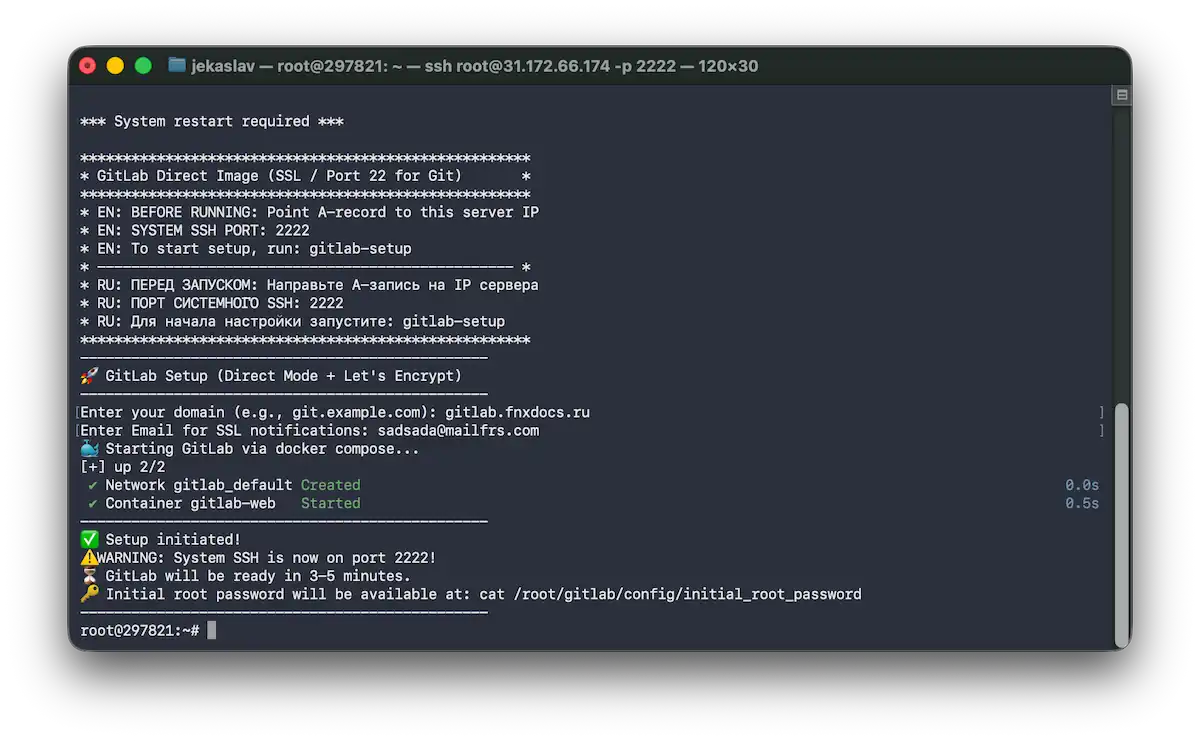 GitLab setup in progress
Getting the admin password
GitLab generates a temporary password for the root account automatically. Retrieve it with:
cat /root/gitlab/config/initial_root_password
Copy the password (the long alphanumeric code after the word Password:) somewhere safe — you'll need it in a moment.
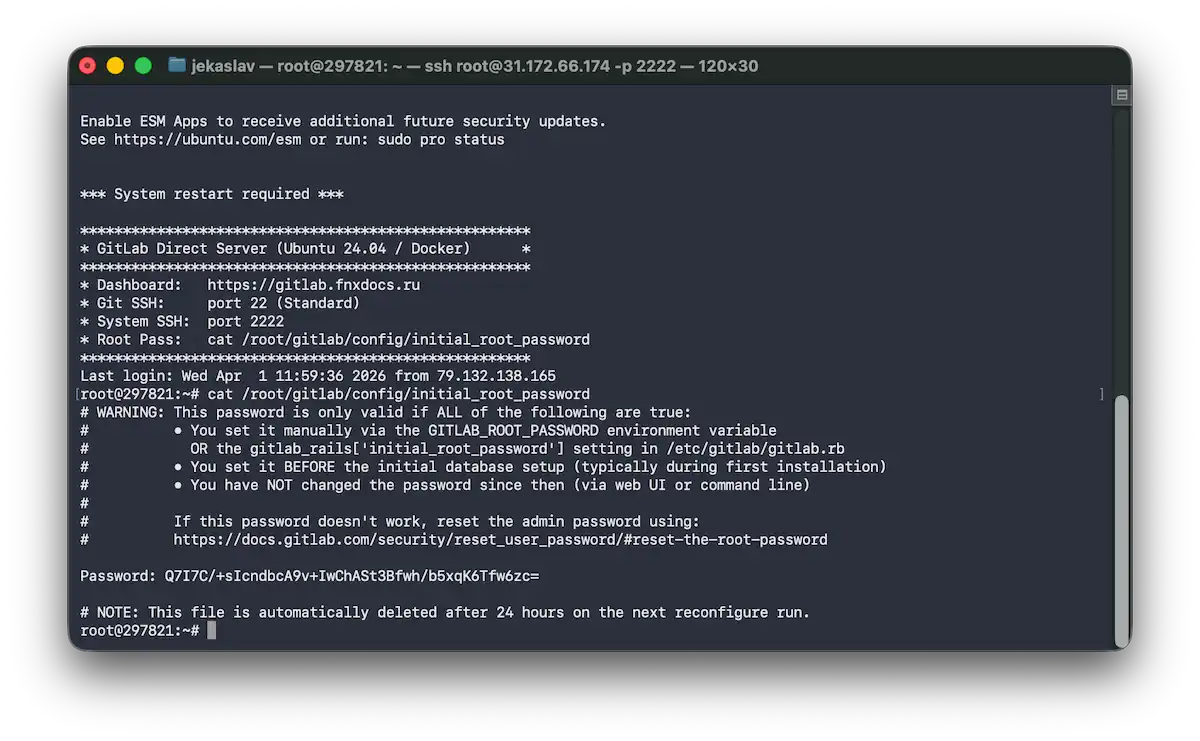 Retrieving the initial GitLab root password
Logging in for the first time
Give GitLab 3–5 minutes to fully start up, then open your browser and navigate to:
https://your-domain.com
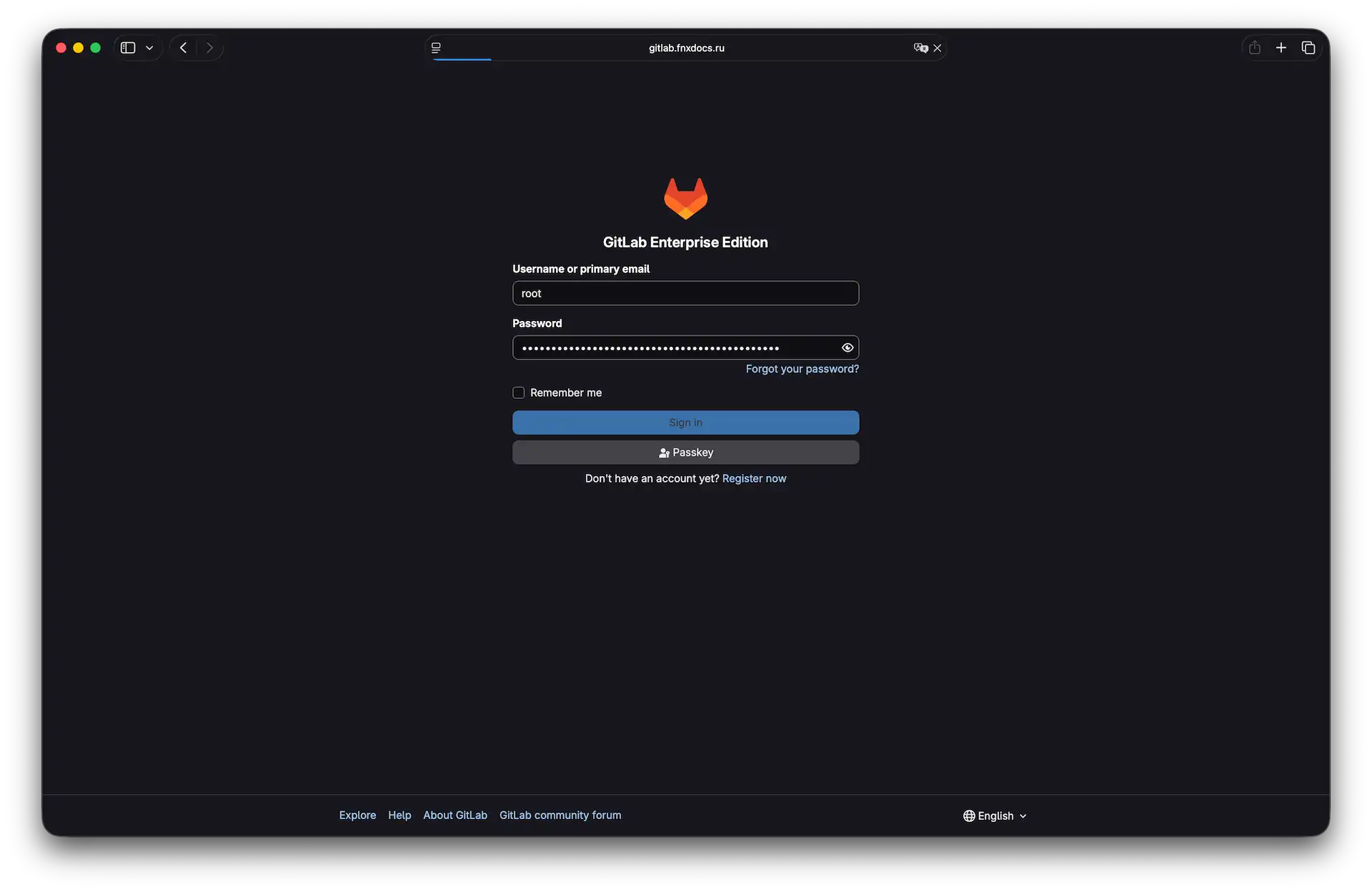 GitLab login screen
Sign in with:
- Username:
root - Password: the one you retrieved in the previous step
Once you're in, go straight to User Settings → Password and set a permanent password before doing anything else.
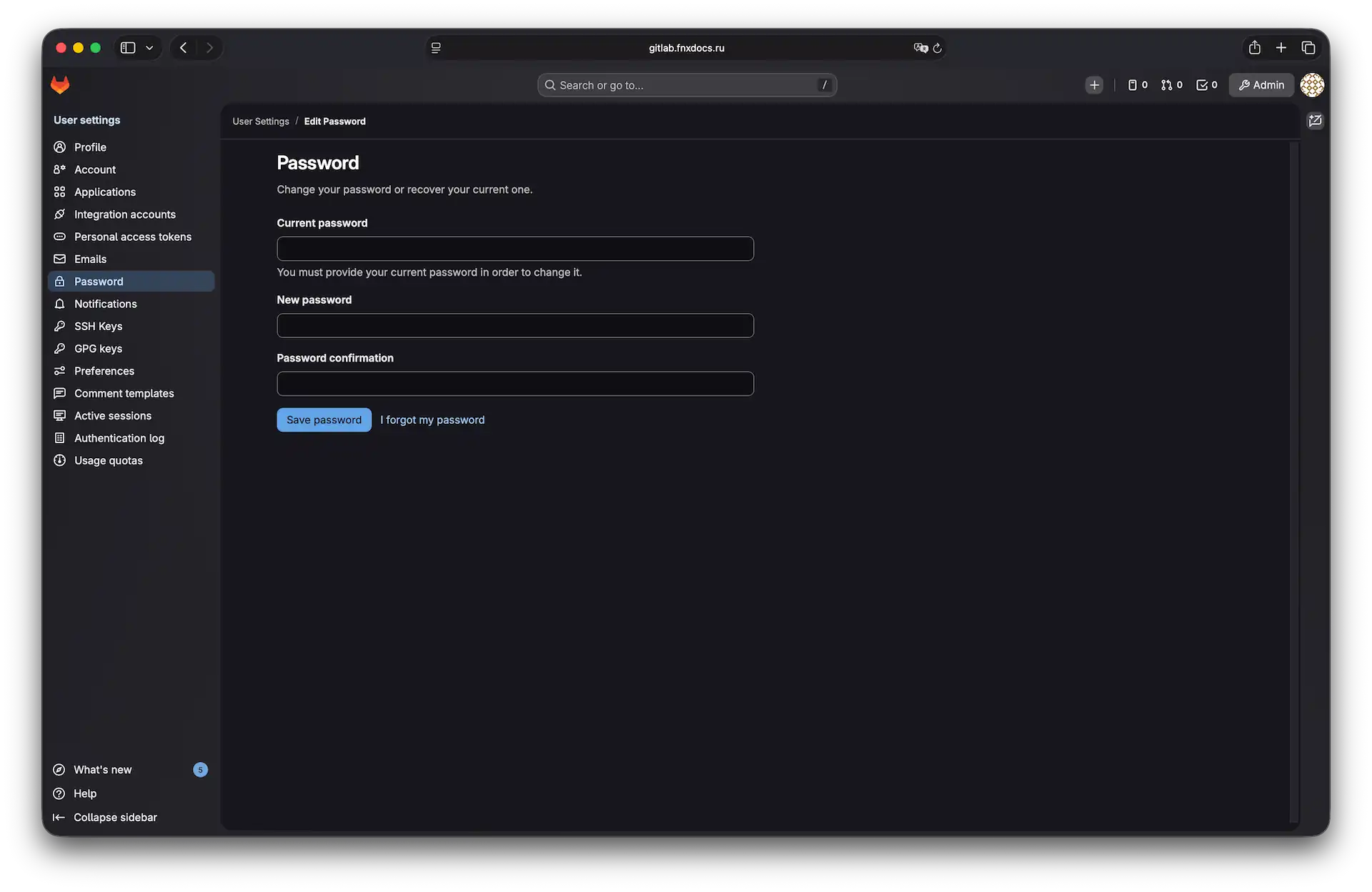 Changing the password in GitLab
Managing the service
GitLab runs in Docker, so all the usual docker compose commands apply. Navigate to the project directory first:
cd /root/gitlab
Then use whichever command you need:
- Restart:
docker compose restart - Stop:
docker compose down - Start:
docker compose up -d - Tail the logs:
docker compose logs -f
A few things worth knowing
- SSH port split: port 22 is reserved exclusively for Git operations (
git clone,git push, etc.). To SSH into the server itself, always use port 2222. - Auto-restart: the Docker container is configured to start automatically on server reboot — your GitLab instance will come back up on its own without any manual intervention.
- Resources: keep an eye on memory usage, especially as your team and repositories grow. You can monitor server load in the dashboard and upgrade your plan if needed.
- Backups: get into the habit of backing up your repositories and configuration. The built-in backup tool:
docker exec -t gitlab-web gitlab-rake gitlab:backup:create.
The backup is generated inside the Docker container at/var/opt/gitlab/backups/. To pull the file to your current host directory, run:
docker cp gitlab-web:/var/opt/gitlab/backups/<backup_filename>.tar .
Help
If you have any questions or need assistance, please contact us through the ticket system — we're always here to help!