Managing logs with Logrotate on Debian
How to properly configure log rotation to keep your system clean and prevent disk overflow.
Logrotate is one of the essential tools for Linux system administration. It automatically rotates, compresses, and removes old log files, helping you maintain order and prevent log files from filling up your disk space.
On Debian 9 and newer versions, logrotate is installed by default and already configured for most system services.
Checking Installation
logrotate --version
Expected output:
logrotate 3.11.0
Configuration structure
Logrotate uses two main locations:
/etc/logrotate.conf— main configuration file with global defaults/etc/logrotate.d/— directory containing individual configuration files for specific services and applications
Example configuration for APT (located at /etc/logrotate.d/apt):
/var/log/apt/term.log {
  rotate 12
  monthly
  compress
  missingok
  notifempty
}

/var/log/apt/history.log {
  rotate 12
  monthly
  compress
  missingok
  notifempty
}
Common directives explained:
rotate 12— keep 12 archived copiesmonthly— rotate once per monthcompress— compress old logs with gzipmissingok— don’t throw an error if the log file is missingnotifempty— skip rotation if the log is empty
Method 1: Standard configuration (recommended)
This is the best approach for most cases. Configuration files are placed in /etc/logrotate.d/ and executed daily by cron.
Example: Create a configuration for a custom application that writes logs to /var/log/example-app/:
sudo nano /etc/logrotate.d/example-app
/var/log/example-app/*.log {
    daily
    rotate 14
    compress
    missingok
    notifempty
    create 0640 www-data www-data
    sharedscripts
    postrotate
        systemctl reload example-app
    endscript
}
Key options:
create 0640 www-data www-data— creates a new log file with proper permissions after rotationsharedscripts— runs the postrotate script only once, not for every filepostrotate ... endscript— commands executed after rotation (e.g., reload the service)
сле настройки проверьте конфигурацию в режиме отладки:
sudo logrotate /etc/logrotate.conf --debug
Method 2: Custom configuration with Cron (for non-standard schedules)
Use this method if you need hourly rotation or want to manage logs for a specific user.
Create a custom config file:
nano /home/testing/logrotate.conf
/home/testing/logs/*.log {
    hourly
    rotate 24
    compress
    missingok
    create
}
Run it manually for testing:
logrotate /home/testing/logrotate.conf --state /home/testing/logrotate-state --verbose --force
To automate hourly rotation, add it to cron:
crontab -e
Add the following line:
14 * * * * /usr/sbin/logrotate /home/testing/logrotate.conf --state /home/testing/logrotate-state
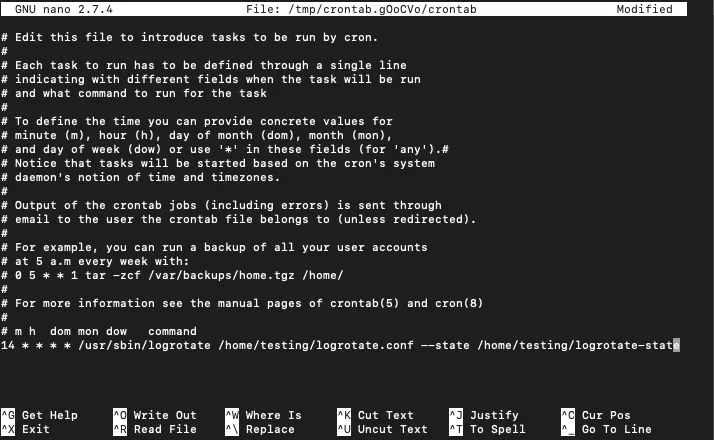 Cron task for logrotate
Useful tips
- Always test configuration changes with
--debugbefore applying them. - Use
createdirective to ensure proper permissions on new log files. - For high-traffic services, consider shorter rotation periods and compression.
- Never set
666or777permissions on log files or directories — it creates serious security risks.
Help
If you have any questions or need assistance, please contact us through the ticket system — we're always here to help!